
Fewer taps when adding an event
Type “meeting tomorrow at 3” and the app reads the date and time, and adds the event.
Why I made it
Back then, I had these little frustrations, and I just wanted to tap the screen as little as possible.
- To add an event, I’d pick a date on the calendar, tap the plus button… and then think, “Wait, what was I going to write?” (Go to bed.)
- I wanted to add an event that was just decided in a meeting, but fiddling with the screen felt like it made me look like “the person playing on their phone instead of listening.” (You worry too much.)
- So many fields to fill in. “Do I need this setting too?”… and my mind would wander. (Go to bed.)
Whether this solves them depends on the person, but if typing doesn’t bother you, it might help.
Works well with dictation
It’s not a feature of the app itself, but you can use dictation from the iOS keyboard.
If you already use dictation, you can cut down on taps even more.
The input screen
The screen where you type

The confirmation screen before saving

That’s all there is.
More features
- Behavior for multiline: choose to put the second line onward into the notes, or to add each line as its own event
- Behavior on done: choose to jump to another calendar app, or to close the app
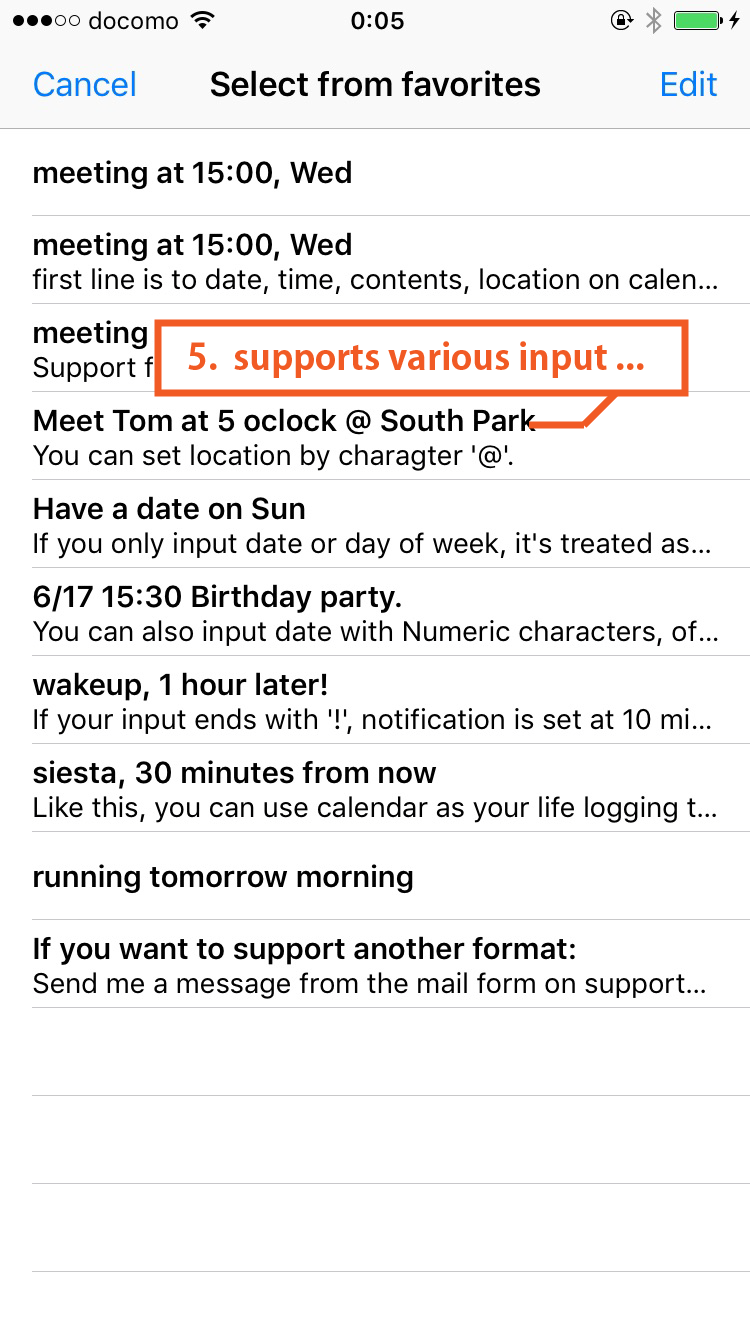
- End the text with ”!” to add an alert, or ”!!” for two. You can change the default timing in Settings
I got oddly particular about some of these. You can try things out from the samples and the settings in the app.
About the name
- It used to be called Choical
- I’ve made more calendar apps lately, so I lined up the names as Calendar X and renamed it Calendar Chotto
- Both “chotto” and “choi” are Japanese for “a little,” meant as “a small bit of effort”
- Calendar Jot, with a similar name, is another app for adding events from a different angle. It focuses on entering events from templates