Who it is for
Site maintainers who collect photos (through a form, for example) and register them as pins on a map.
(That is me. If you do something similar, you may find it useful too.)
What it does
It helps with the steps between a folder of photos and a pin on a map.
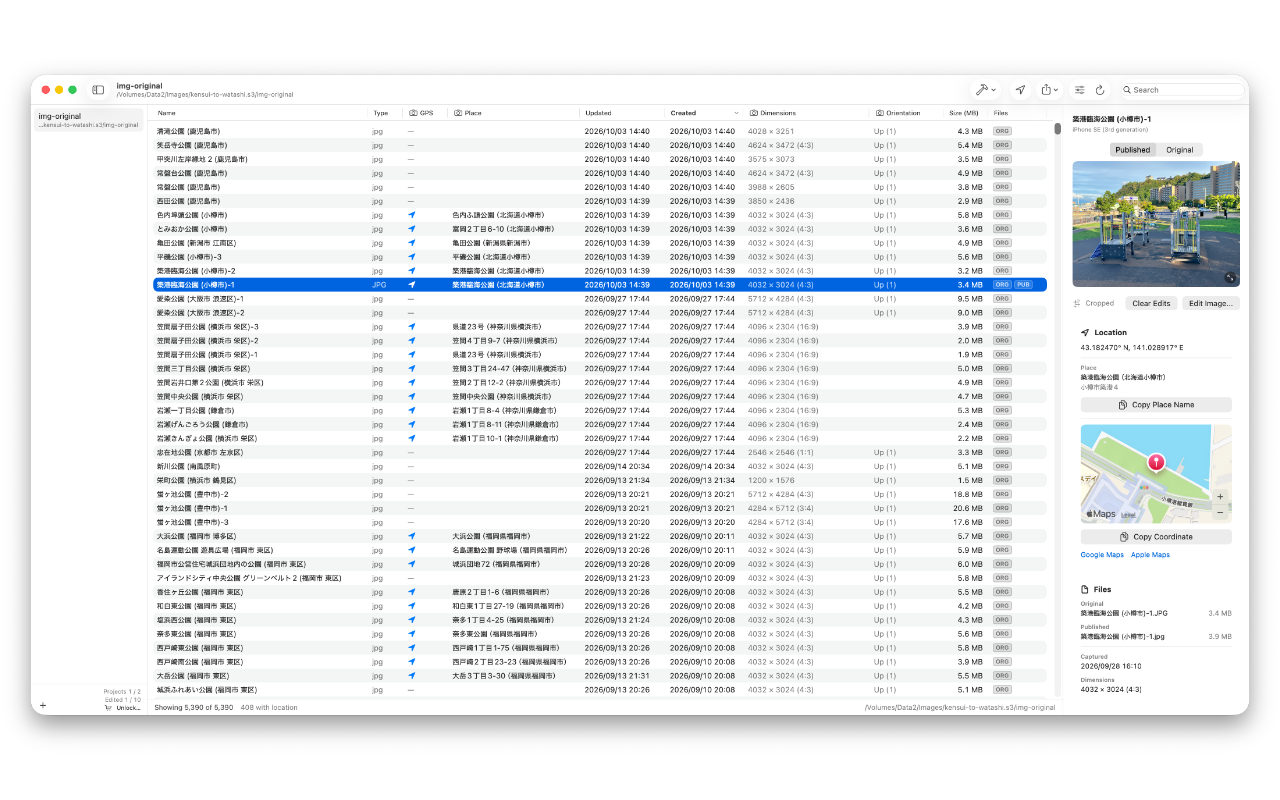
- Lists the images in a folder together with their location. From an image with a location, you can open it on a map.
- Helps with the minimum editing needed before publishing: cropping, rotating and masking.
What was inconvenient in the Mac’s own apps, and what this app does instead
These are the specific things that got in the way when preparing images for a map, and what this app offers for each.
(1) Location
Problem 1: In Preview, you cannot tell whether an image has a location without opening the Inspector.
Solution 1: The list shows it for every image, and can be filtered to images with a location. It also looks up the place name and shows it as a column.
Problem 2: From an image’s location, Preview only opens Apple Maps, without a pin, so the exact spot is unclear. Latitude and longitude can only be copied one at a time.
Solution 2: Copies the coordinate in one go, and opens it with a pin in Apple Maps or Google Maps.
Problem 3: Making it clear whether an edited image keeps or drops its location and other EXIF data is tedious.
Solution 3: By default the edited image keeps what the original had. A setting removes it instead.
(2) Editing
Problem 4: The crop cannot be locked to an aspect ratio.
Solution 4: The editor locks it to the original’s ratio or to a preset.
Problem 5: Images can only be rotated in 90° steps. Going back and forth with an iPhone works, but is a chore.
Solution 5: The editor rotates by fine steps.
Problem 6: Shapes placed to mask part of an image are flattened into it when saved, and cannot be adjusted afterwards.
Solution 6: The edits are kept apart from the image, so they can be adjusted and the image written again at any time.
(3) Other
Problem 7: An image can carry an orientation flag, and look rotated differently depending on the device.
Solution 7: The list shows the orientation. Edited images are saved already rotated, without the flag.
Problem 8: A file name can end up decomposed (NFD) without anyone meaning it to: an accented letter such as “é”, or a Japanese kana with a voicing mark such as “パ”, is stored as two characters. It looks the same, but is treated as a different name.
Solution 8: The list detects such names and offers a command to normalize them.
Limits of the free version
The free version has limits on numbers. A one-time in-app purchase removes them.
- Up to 2 folders (projects)
- Up to 10 edited images per project
Nothing else is limited.