What This App Does
Toggle Mirror is an app made only for switching between screen mirroring and extended display when multiple displays are connected to a Mac.
Useful If
If you use a MacBook keyboard or Apple Magic Keyboard, you can already do the same thing with Cmd + F1 (Brightness Down), so you probably do not need this app.
In other words, this app is only for people who do not use Apple’s standard keyboard but still want to switch between mirroring and extended display with one action.
Screen and Operation
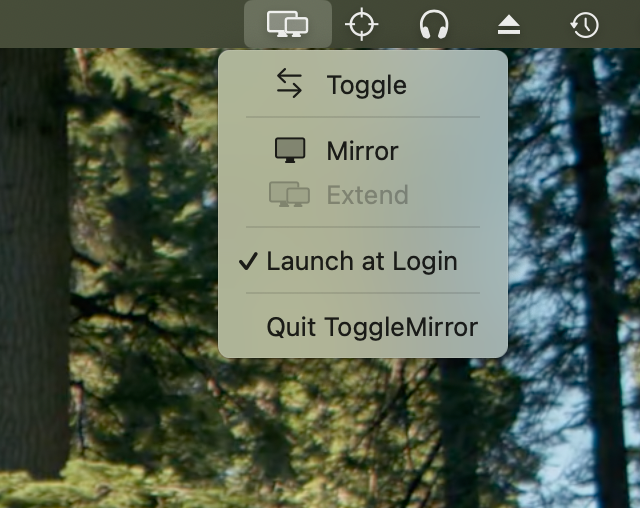
When you launch it, a monitor icon appears in the menu bar. From there, you can switch between mirroring and extended display.
Frequently Asked Questions
In Extend mode, each display has its own desktops (Spaces). When you switch to Mirror, macOS pairs the Nth desktop of each display and combines each pair into one.
For example, suppose Mission Control shows “Desktop 1” and “Desktop 2” on the right display, and “Desktop 3” and “Desktop 4” on the left display. Then the first desktop on the right (Desktop 1) is paired with the first on the left (Desktop 3), and the second on the right (Desktop 2) is paired with the second on the left (Desktop 4).
After switching to Mirror, my windows end up on separate desktops instead of on one screen
Mirror only combines desktops that are paired. Windows on a desktop outside the pair end up on a separate desktop.
In the example above, if you switch to Mirror while the right display shows Desktop 1 and the left display shows Desktop 4, the windows on Desktop 4 go to the pair with Desktop 2, so they do not appear on the screen you are looking at.
Before switching to Mirror, show the same-numbered desktop on both displays. In the example, show Desktop 1 on the right and Desktop 3 on the left, then switch. The windows from both displays then appear together on the mirrored screen.
If your windows are already split, you do not need to close any desktops in Mission Control. When you switch back to Extend, windows return to their original desktops on their original displays.
- Windows that were on a desktop in Extend mode return to that desktop when you switch back to Extend.
- Windows you open while in Mirror stay on the main display’s desktop.
After switching back to Extend, my windows stay on one display instead of returning
Check whether “Displays have separate Spaces” is turned off.
When it is off, both displays share the same desktops. Switching to Mirror gathers your windows in one place, and switching back to Extend does not return them to their original displays.
- Open System Settings > Desktop & Dock.
- Scroll down to Mission Control.
- Turn on “Displays have separate Spaces.”
- Log out, then log back in.
Move the windows that are already gathered back to their displays by hand. From the next switch on, windows return to their original displays when you switch back to Extend.